Setting up CombineRMM on your Mac
| Permission | What it's for |
|---|---|
| Screen Recording | Lets us see your screen during a support session — only after you accept each session. |
| Accessibility | Lets us move the mouse and type for you during that session. |
| Full Disk Access | Lets us check storage, mail size and installed software so we can spot problems early. |
1 Find CombineRMM in your menu bar
At the top-right of your screen, near the clock, click the CombineRMM icon:

If you have more than one icon like this, CombineRMM is the one whose menu starts with "CombineRMM".
2 Open Permissions
Point to Permissions. You'll see the three permissions below — a ✓ check mark means it's already on. Do each one that doesn't have a check mark yet.

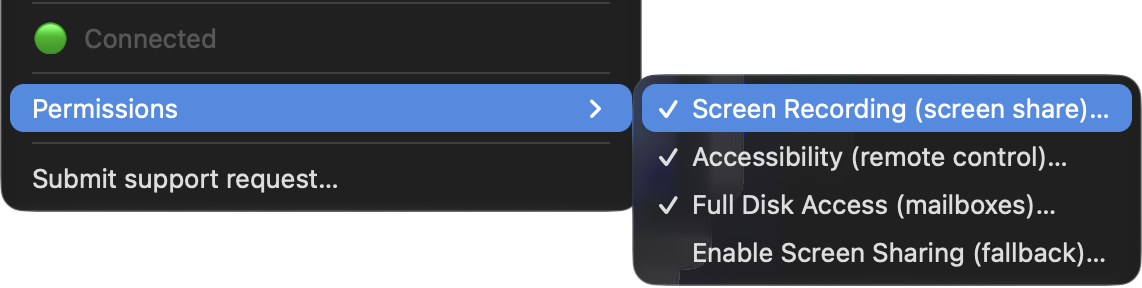
You can skip "Enable Screen Sharing (fallback)" unless our team asks you to use it.
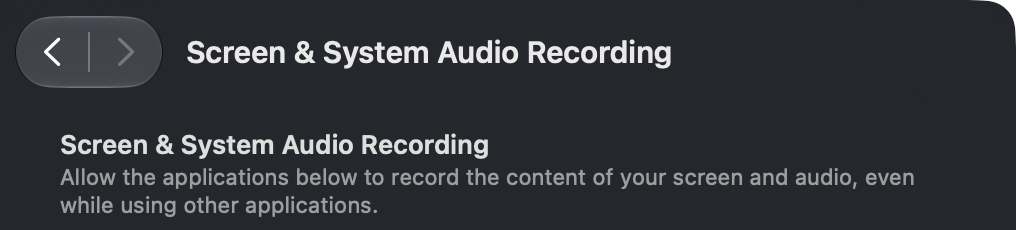
3 Screen Recording
- Click Screen Recording (screen share)…
- If a macOS message appears, choose Open System Settings.
- Turn on CombineRMMMenuBar. Enter your Mac password if asked.
- If macOS asks to Quit & Reopen, choose it — CombineRMM restarts by itself.

4 Accessibility
- Click the CombineRMM icon again → Permissions → Accessibility (remote control)…
- Choose Open System Settings.
- Turn on CombineRMMMenuBar. Enter your Mac password if asked.
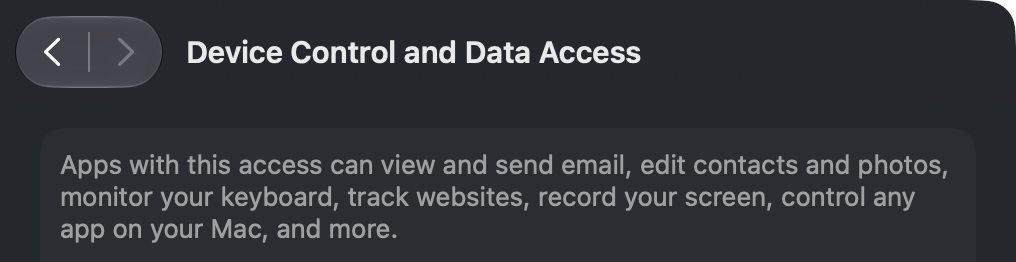

On the newest macOS this page is called Device Control and Data Access; on earlier versions it's Accessibility. Same switch either way.
5 Full Disk Access
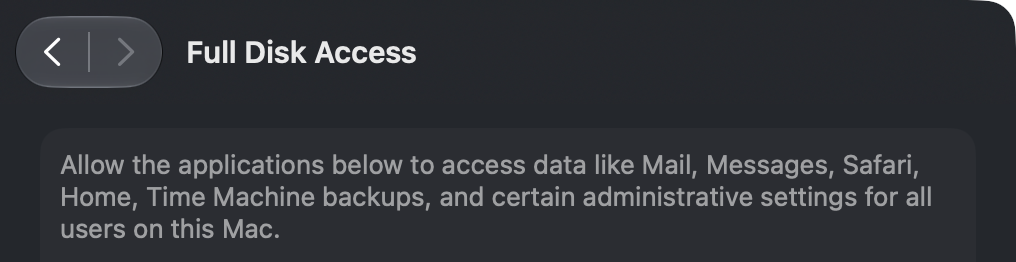
- Click the CombineRMM icon → Permissions → Full Disk Access (mailboxes)…
- Turn on combinermm-agent. This one needs an administrator password.

6 Check you're done
Click the CombineRMM icon → Permissions. Screen Recording, Accessibility and Full Disk Access should each show a ✓. That's it — thank you! We can see it's done on our side too, so there's nothing to send back.
- If macOS shows "Background Items Added" for CombineRMM, leave it switched on.
- When we start a support session, you'll see a prompt on your Mac to accept or decline — nothing happens without it.
- Stuck, or not sure you have an administrator password? Use Submit support request… in the CombineRMM menu, or reply to our email, and we'll walk you through it.