Setting up Combine on your Mac
One permission so your IT team gets a complete picture of your Mac · about 1 minute · Metahuman Network
Why this is needed: Combine keeps an eye on your Mac's health so your IT team can spot problems early. It only
reads information: it can't see your screen, control your Mac or change anything on it. Apple requires you to
approve Full Disk Access yourself, so we can't turn it on for you. You can turn it off later in System Settings.
| Permission | What it's for |
|---|---|
| Full Disk Access | Lets Combine check mailbox sizes and take a complete inventory of storage and installed software. This is the only permission Combine needs. |
| Screen Recording, Accessibility | Not needed. Combine never views or controls your screen. |
Is your Mac managed by your company? If your IT team uses a device management service (MDM) such as
Microsoft Intune or Jamf Pro, they can grant Full Disk Access for you with the Combine configuration profile, and
there's nothing for you to do. Check with them before you start. A profile installed by double-clicking it doesn't
count: macOS only accepts this permission from an MDM.
1 Find Combine in your menu bar
At the top-right of your screen, near the clock, click the Combine icon. It may show your organization's logo instead of the Combine logo.
Not sure which icon it is? Combine's menu starts with "Combine" and lists your device name and organization.
2 Open Full Disk Access
Point to Permissions, then click Full Disk Access (mailboxes)…. If there's already a ✓ check mark next to it, you're done.
System Settings opens on the Full Disk Access page:
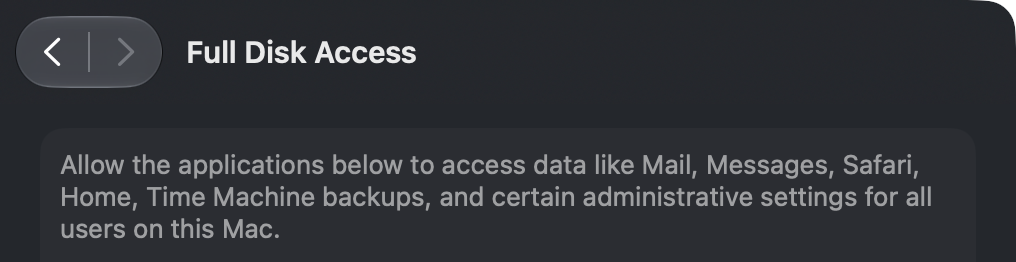
You can also get there yourself: Apple menu › System Settings › Privacy & Security › Full Disk Access.
3 Turn on mhn-agent
- Find mhn-agent in the list. That's the Combine agent.
- Switch it on. This needs an administrator password.
Don't see mhn-agent in the list? Click the + button under the list, press
⌘ ⇧ G, type /usr/local/bin/mhn-agent, press Return,
click Open, then switch it on.
4 Check you're done
Click the Combine icon → Permissions. Full Disk Access (mailboxes) should show a ✓. It can take a few seconds to appear. That's it, thank you! Your IT team can see it's done on their side too, so there's nothing to send back.
Good to know
- Your IT team can also send a reminder from their dashboard. System Settings opens by itself on the Full Disk Access page with a short message from Combine; follow step 3.
- If macOS shows "Background Items Added" for Combine, leave it switched on.
- On Windows and Linux there's nothing to approve.
- Stuck, or don't have an administrator password? Contact your IT team and they'll walk you through it.
Combine · Metahuman Network · Mac permissions guide · Screenshots from macOS 27; earlier versions look similar.